.webp)
How to fix logos and product details in AI images without regenerating the whole image
You generated the image. The pose is right. The fabric falls the way it should. The lighting is exactly what you briefed.
Then you look at the logo.
It is close, but it is not your logo. The wordmark is subtly wrong. A letter carries the wrong weight, the stitching has invented a flourish, or the printed slogan reads almost right and is therefore completely wrong.
A logo is one of the few elements in a product image that has to be exact. A customer recognises it in an instant, and anything approximate reads as a mistake rather than a detail. It is also one of the things AI reproduces least reliably. The parts that are genuinely hard - pose, drape, light - often land first. The part that should be the simplest, a fixed mark you already own, is the part that drifts.
This is one of the most common reasons brands stall when they move product imagery to AI. Everything works except the one thing that cannot be wrong.
This guide is about that problem. Why AI changes your logos and fine details, why the obvious fix usually makes things worse, and how to correct a single detail without disturbing the rest of the image.
Why AI changes your logo in the first place
It helps to understand what is actually happening, because it explains why the problem is so persistent.
A generation model does not copy your logo. It reconstructs an image from patterns it has learned, predicting what each part of the picture should look like. For most of the image, that is exactly what you want: a believable, well-lit, correctly draped garment.
But a logo is not believable-shaped. It is specific. Your wordmark has an exact letterform, your embroidery has an exact stitch, your hardware has an exact engraving. The model approximates all of it, because approximation is how it works. It produces something logo-like rather than your logo. This kind of AI image inconsistency is the gap between "looks like a brand" and "is your brand".
The same is true of any fixed detail: printed text, a button, a piece of trim, a precise colourway on an embroidered crest. The closer a detail has to sit to a known reference, the more likely the generation is to miss it.
So the drift is not something you can brief your way around. It is a property of the technology, not a flaw in your setup. Which means the answer is not a better prompt. It is a different step.
What most people try, and why it fails
The instinct is obvious. The logo is wrong, so you regenerate.
Sometimes the second image fixes the logo. More often it fixes the logo and moves something else. The pose shifts, the background changes, the light falls differently, and now a different detail is off. So you regenerate again.
Each generation is a fresh roll of the dice. You are not correcting the image you have; you are gambling on a new one. The parts that already worked are back in play every time, which means every attempt to fix one detail risks breaking another.
There are three costs to this, and brands feel all of them.
You burn credits. Every re-roll is a new generation, and the ones that move the wrong thing are pure waste.
You lose time. A correction that should take seconds becomes a cycle of generate, check, reject, repeat.
And you often still end up off. After all of it, you are left choosing between an image with a slightly wrong logo and starting the whole thing again.
This is the point where a lot of teams quietly conclude that AI cannot handle their brand. It can. The workflow was just wrong.
The right approach: correct the detail, do not regenerate the image
The fix is to stop treating a wrong detail as a reason to remake the entire image.
You already have two things the model does not. The generated image that is mostly right, and your original input, which holds the correct detail exactly. The logo on your tech pack, packshot, or product shot is not an approximation. It is the real thing.
So rather than asking the model to guess again, you point it at the truth. You isolate the area that is wrong, reference the same area on your original, and rebuild only that patch from your source. Everything else in the image stays exactly as it was.
This is targeted inpainting for product imagery. The pose you liked is untouched. The lighting you briefed is untouched. The one detail that was wrong is now correct, taken from your own product rather than reinvented.
The difference matters because your input is the only fully reliable reference in the process. A prompt describes a logo. A second generation guesses at one. Your original holds it. Working from the source removes the guesswork, which is why the correction lands the first time instead of after the fifth re-roll.
That is the principle. Here is how it works in practice.
How Detail Fixer works in Graswald AI
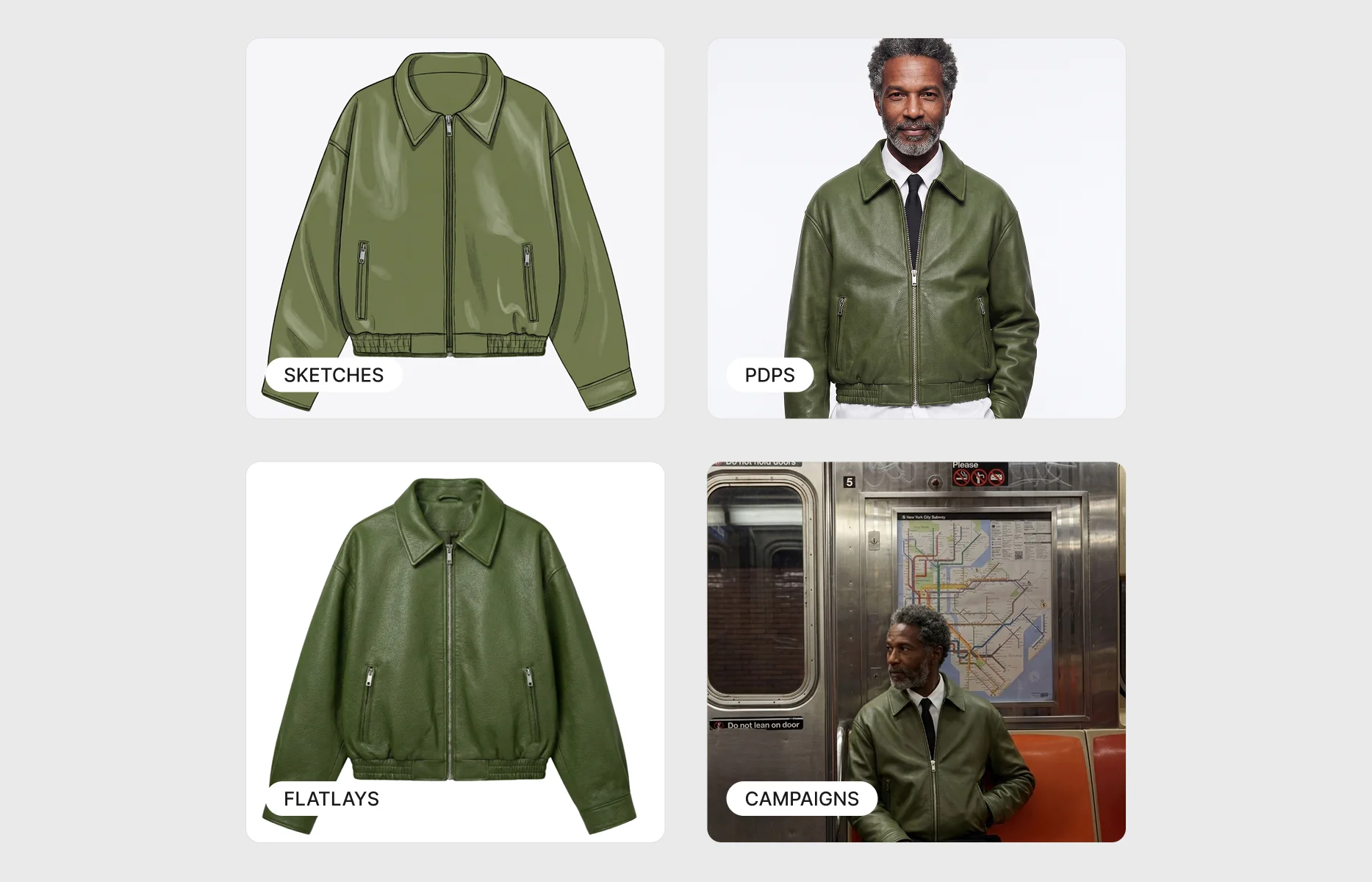
Graswald AI is the AI production studio for fashion brands, the platform where teams generate on-model imagery from the inputs they already have. Detail Fixer is the tool inside it that corrects a specific detail in a generated image, using your original input as the reference.
It began as a fix for logos. Working closely with partner brands, it expanded to correct every complex detail point in a garment, from embroidery and printed text to buttons and trim. The principle stays the same throughout: your original input holds the correct detail, and Detail Fixer rebuilds that area of the generated image from it. It is how you fix logos in AI-generated product photos without losing the parts that already worked.
The process is the same every time, whatever the detail.
- Open a task awaiting review and hover over the generated image. A pencil icon appears. Click it.
- Detail Fixer opens with two panels side by side. On the left is your generated image. On the right is your original input as the reference. If you uploaded multiple product angles, you can switch between them from the dropdown.
- Draw over the area you want to correct on the generated image, then draw over the same area on the input.
- Hit Fix. In seconds, the detail is rebuilt from your original artefact, precisely, without touching anything else.
Draw, reference, fix. That is the whole workflow, and it takes a few seconds per detail.
Beyond logos: print, embroidery, and hardware
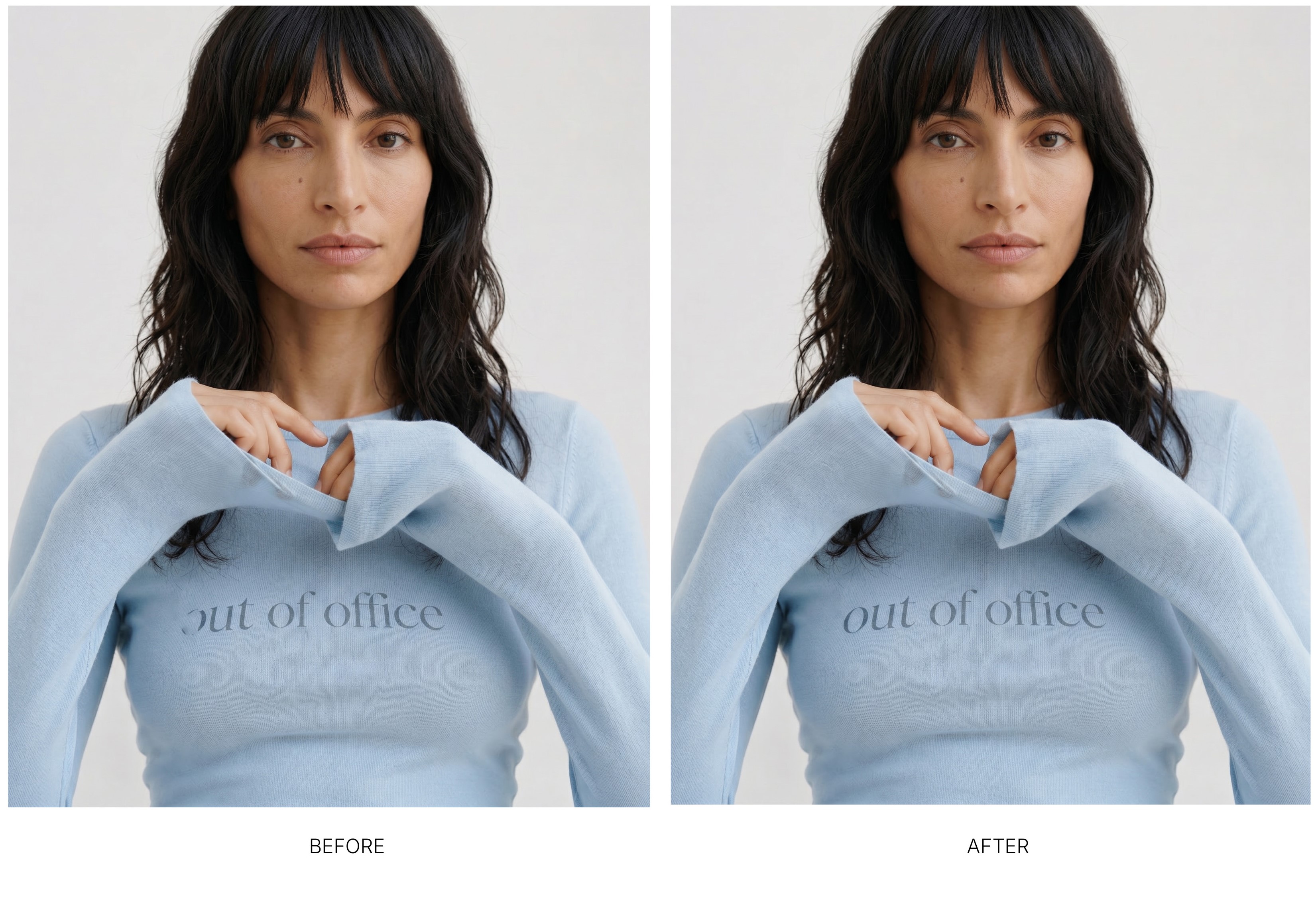
Printed text. Slogans and wordmarks matched exactly to the original, for dependable AI print accuracy.
Logos are where it starts, not where it ends. The same process applies to any fixed detail AI tends to approximate, which makes Detail Fixer useful for AI garment detail correction at scale.
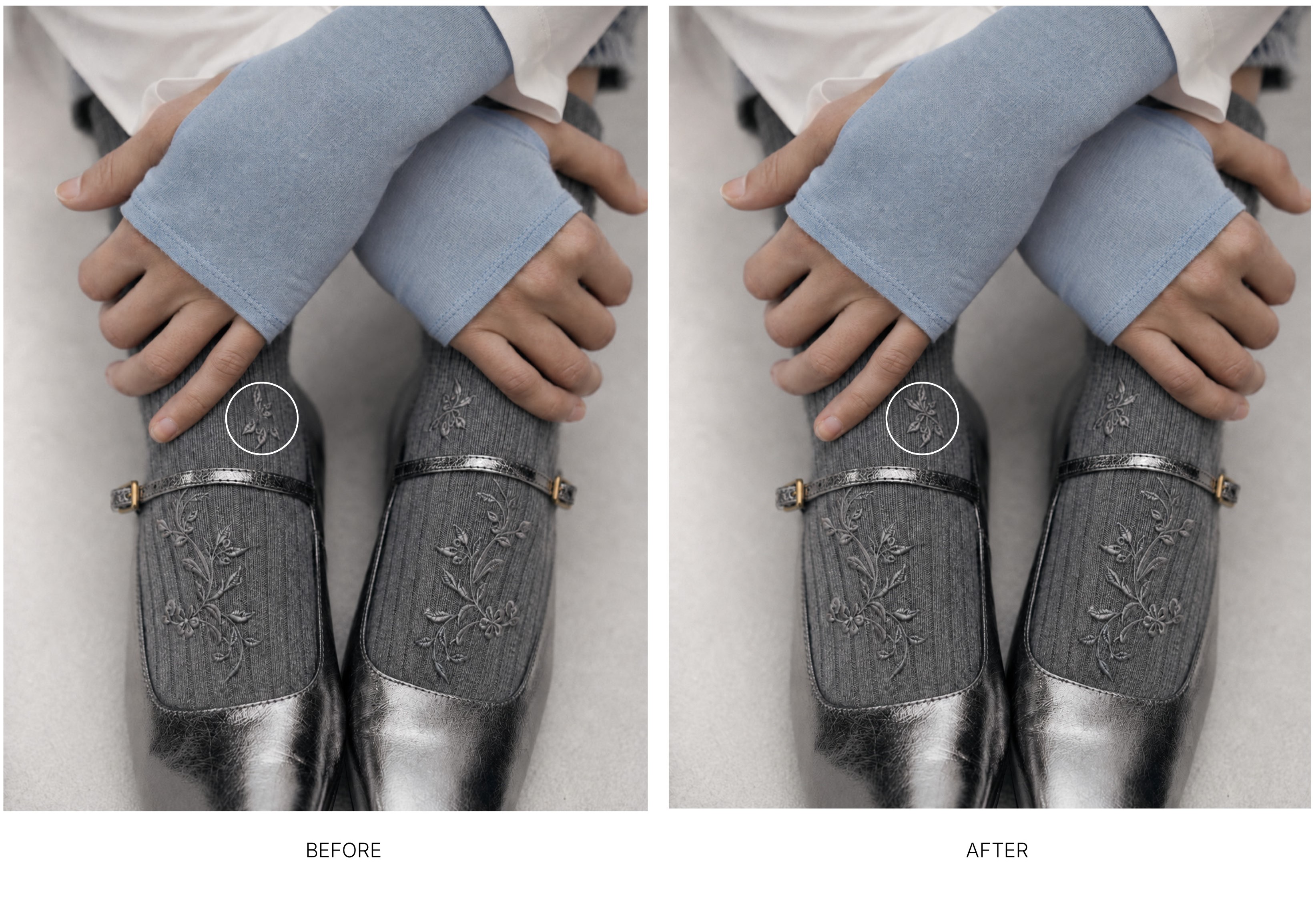
Embroidery. Colours and fine detail brought back in line with the original, for reliable AI embroidery accuracy.

Buttons and hardware. Logo-engraved clasps, metal fasteners, and trim corrected where the generation falls short, against your input.
In every case you correct against your own product rather than asking the model to guess again. That is what gives you AI product imagery logo accuracy you can actually rely on.
When nothing is wrong, but it could be better
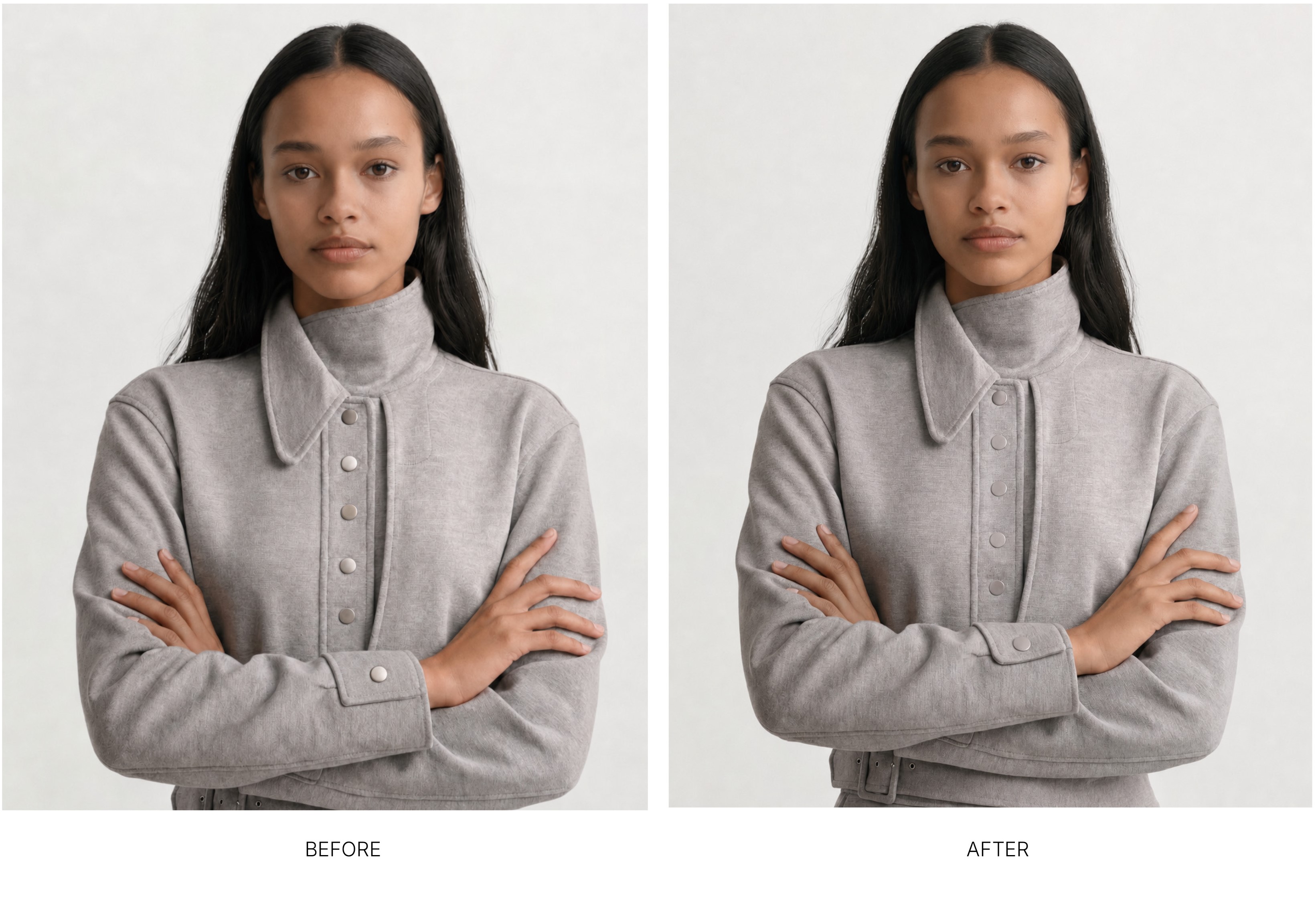
Detail Fixer earns its place even when the generation is technically correct.
Sometimes the image is right but the detail you care about is not carrying. The lighting landed, the background landed, but the logo or the trim is not emphasised the way you intended. You can use Detail Fixer to bring that detail forward, so the finished image shows the garment the way you meant it to be seen.
Correcting details in AI fashion images is as much about creative intent as it is about accuracy. The point is not only to fix mistakes. It is to give you the final say over what the image foregrounds.
Works across your workflow, in PDP and Freeform
Detail Fixer works in both production tools.
PDP is how you reliably scale product imagery across your catalogue. Freeform gives you the creative flexibility for editorial and campaign content. On-model imagery logo correction works the same way in both, so you are never choosing between scale and accuracy. You get both.
What this means for your brand
When you can correct a single detail in seconds rather than regenerating an entire image, the economics of AI content change.
You stop burning credits on re-rolls. A detail that is slightly off no longer forces a choice between living with it and regenerating everything around it. You keep the studio-quality image you already generated and correct only what needs correcting.
That is how you keep AI product images on-brand at scale. Your logos are accurate. Your embroidery and print match the original. Your brand consistency holds across every SKU, every colourway, and every channel, which is the whole point of moving production to AI in the first place.
This compounds at volume. A single wrong logo is an annoyance on one image. The same drift repeated across a collection of hundreds of SKUs is a brand-consistency problem, and catching it through re-rolls would cost more time and more credits on every item. Correcting in place keeps the per-image overhead to seconds, so accuracy scales at the same pace as production rather than holding it back.
If you are still weighing up how AI fits into your production timeline, it is worth reading how Graswald AI increases speed to market for e-commerce brands, and how brand-specific AI avatars keep your visual identity yours. Detail Fixer is the layer that makes the fine detail in all of it accurate. It is the next step on from our earlier Logo Repair feature, expanded to cover every complex detail in a garment.
There is more on the roadmap. Book a demo if you want a closer look at how Detail Fixer fits into your workflow.
Quick answers to common questions
Why does AI change my product logo?
A generation model reconstructs an image from learned patterns rather than copying your exact logo, so it approximates the wordmark, lettering, or stitch pattern instead of reproducing it. Detail Fixer corrects this by rebuilding the logo from your original input.
How do you fix logos in AI-generated product photos?
Open Detail Fixer, draw over the logo on the generated image, draw over the same area on your original input, and hit Fix. The correct logo is rebuilt from your source artefact in seconds, without changing anything else in the image.
Why not just use a better prompt?
Because the drift is not a prompting problem. A generation model approximates fixed details by design, so no prompt reliably reproduces an exact wordmark or stitch. Correcting the detail against your original input is the step that prompting cannot replace.
Can AI get clothing details right?
On its own, AI often approximates fine details such as logos, embroidery, print, and buttons. With Detail Fixer, you correct those details directly against your original input, so the finished garment matches the real one.
How do you keep AI product images on-brand?
Lock your avatars, lighting, and shot list at onboarding so the overall image stays consistent, then use Detail Fixer to correct any specific brand detail that drifts during generation, such as a logo, print, or embroidery.
How do you produce AI product photography without regenerating?
Detail Fixer lets you correct a single detail in place rather than regenerating the whole image. This avoids the cycle where regenerating to fix one detail breaks another, and it stops re-rolls from wasting credits.
Does Detail Fixer work for embroidery and printed text?
Yes. It corrects embroidery, printed text, buttons, trim, and logos. The process is the same for each: draw over the area on the generated image, reference the same area on the input, and fix.
.webp)





-p-1600.webp)

.webp)